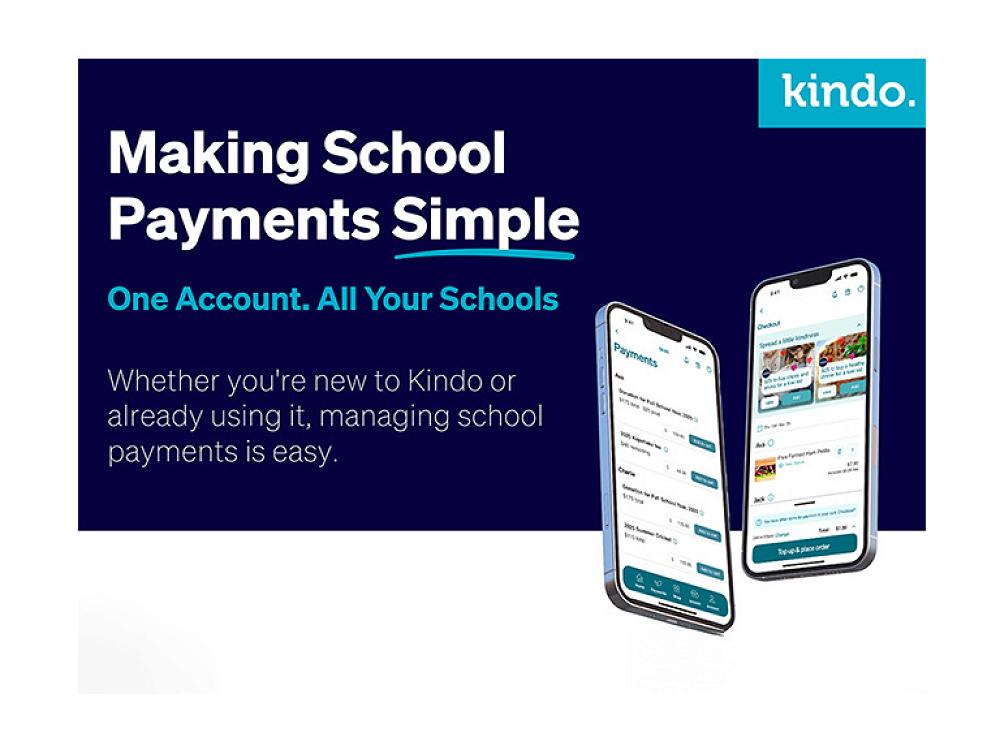
Introducing Kindo - our online school shop that is open 24/7!
We are simplifying student transactions at our school with the help of Kindo. It offers convenient payment options online for donations, activity fees, subject related costs and more.
Use one family account to manage multiple students across schools who use Kindo if you need to.
Kindo at Burnside High School will start with you being able to make easy full or part payments towards your school contributions, donations or activity fees.
We will look to introduce more functionality over time.
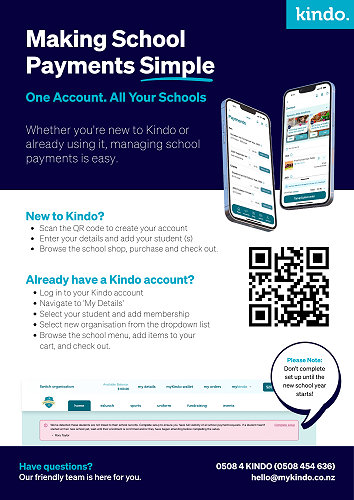
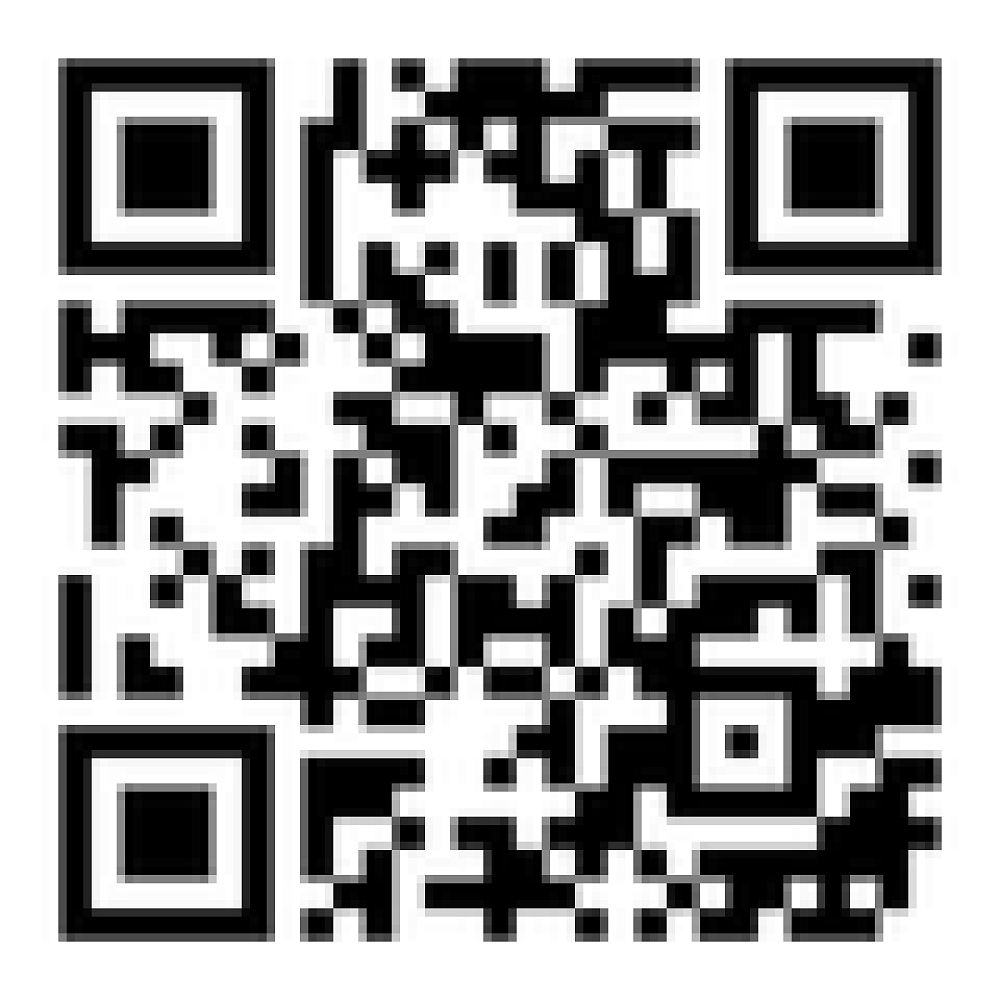
To get started, you can either use the QR Code below or follow the step-by-step instructions that follow.
New to Kindo?
Kindo is easy to set up and use. Just go to our school website menu and click Kindo:
Use the ‘create account’ option, to set up an account.
Enter the email address the school has on file for you, and your students will automatically be added.
Or you can add in your details as the account holder, and your students’ details as members to the account.
Kindo is also available via the Android Play Store and Apple App Store.
Already a Kindo user?
If you have used 'Kindo' or their partner app 'Ezlunch' at another school, you can log in to your existing account and update your details.
Log in to myKindo.co.nz.
Select the 'My Details' page and add a new student to your account or edit an existing students' details.
A student can belong to two or more schools or organisations. Just select 'add membership' to the student and select our school from the dropdown list.
Questions?
Visit support.mykindo.co.nz and search key words, email hello@mykindo.co.nz or phone (09) 869 5200 or 0508 454 636 for assistance, they are available 8am-4pm on school days.
What to do if you have an automatic payment
If you have an automatic payment set up to pay to Burnside High School or would like to do so, please follow these steps. Start with cancelling your current payment if you have one. If you are new to Kindo please follow the instructions above to download the app or open a free account on the desktop application.
You can then use this guide or the steps below to establish your automatic payment via Kindo. We will ensure that any credit that you have of your account is transferred over to Kindo.
Establishing an automatic payment
Having an automatic payment set up into your myKindo account is easy.
Log in to your myKindo account and select myKindo wallet.
Under the online Bank Transfer section are all the details you will need to set up an automatic payment with your bank.
Login into your personal bank and set up the automatic payment, as you would for any other automatic payment.
You will receive a myKindo top up receipt each time the funds are received.
Thank you for your support and patience as we work through this change together.
Gallery