Google Scholar as a Research Tool
Google Scholar limits web search results to its definition of academic, peer reviewed literature.
It’s great for getting a broad idea of the academic research on your topic area, finding related research, and you can even set up email alerts to new research that match your search words.
Google Scholar search tips
Every word matters: Google Scholar works best if the words/terms entered are directly relevant to the topic. There is no need to type a full sentence or research question.
Prioritise word order: Google Scholar ranks the search words (first = most important, last = least important). Reordering search words may improve the way the results are sorted.
Relevance: Google Scholar results are, by default, sorted by relevance to the search words you entered. The more often your search words (or synonyms) appear in a result, the higher up the list they will be. For this reason, you don't need to browse beyond the first few pages of results.
Searching for an exact phrase or combination of words: Enclose the selected words in “double quotation marks” to get an exact match.
Search results must contain this word: Enter + immediately before the chosen word, with no space between them (e.g. +youth)
Word must appear in the title of the results: In the search box, enter intitle: immediately before the selected word (e.g. intitle:physical). It is recommended that you try searching without the intitle: command as well. This is to ensure you don't miss out on potentially relevant literature.
Using Boolean operators: 1. Google Scholar automatically uses AND to combine words. 2. Instead of NOT to exclude words, enter a hyphen immediately before the word e.g. -youth. 3. OR between words instructs Google Scholar that ‘any of those words’ are ok. This is useful when including synonyms. 4. Boolean operators have to be in CAPITALS to work as a command.
Your Subject Librarian is happy to assist you in developing a search strategy (a combination of search words and commands) that works well for your topic.
Accessing Google Scholar
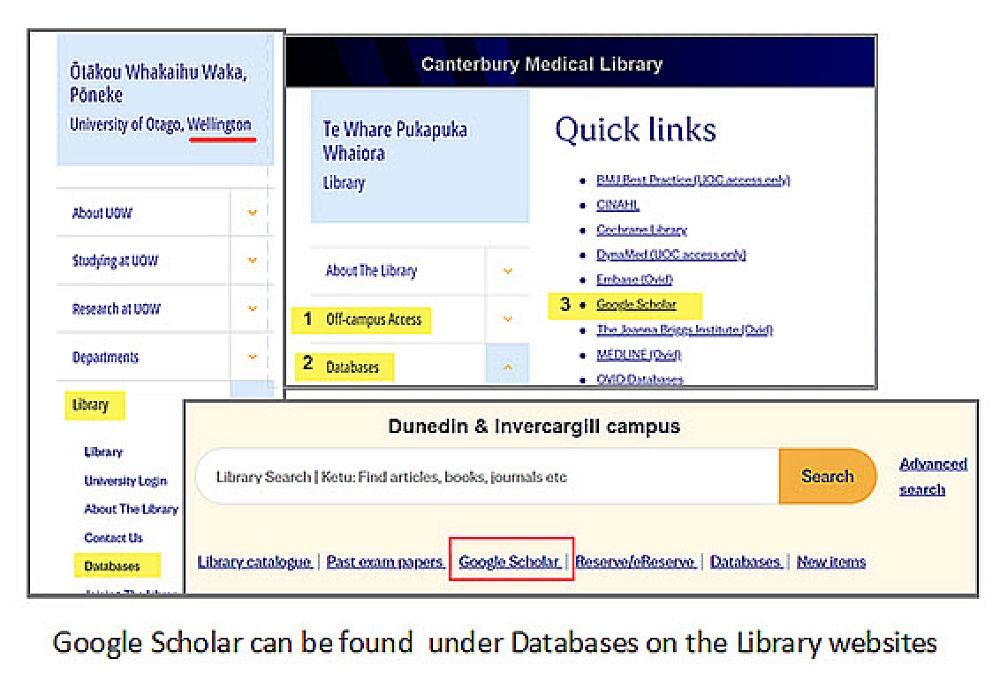
Use the link to Google Scholar on the databases page of your campus Library website:
Dunedin: www.otago.ac.nz/library/databases
Christchurch: www.otago.ac.nz/christchurch/library/offcampus/
Wellington: https://www.otago.ac.nz/wellington/wellington-medical-and-health-sciences-library/databases2
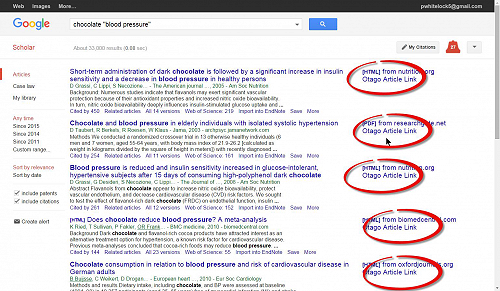
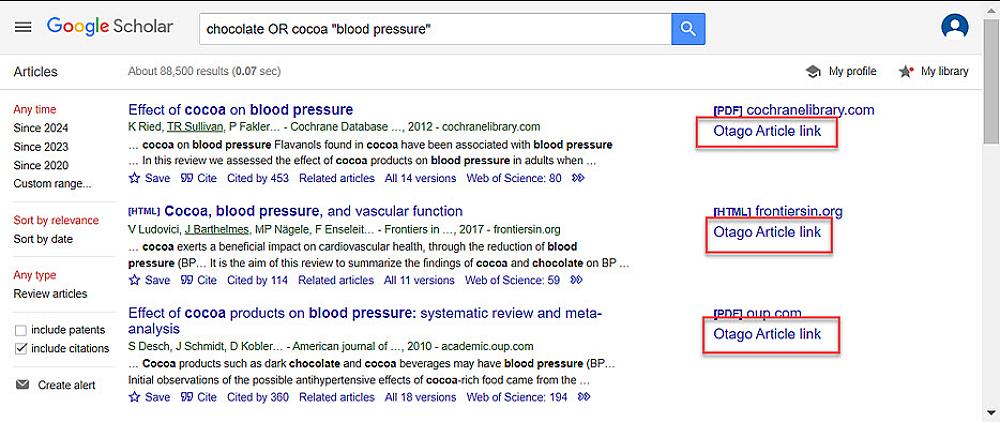
The Google Scholar link on the Library website will prompt you to sign in with your student/staff username and password. After that, you will be able to see which Google Scholar results are available through the University’s database and e-journal subscriptions. Look out for: Otago Article Link, Wellington Article Link or Christchurch Article Link (as shown below).
Using Article Links
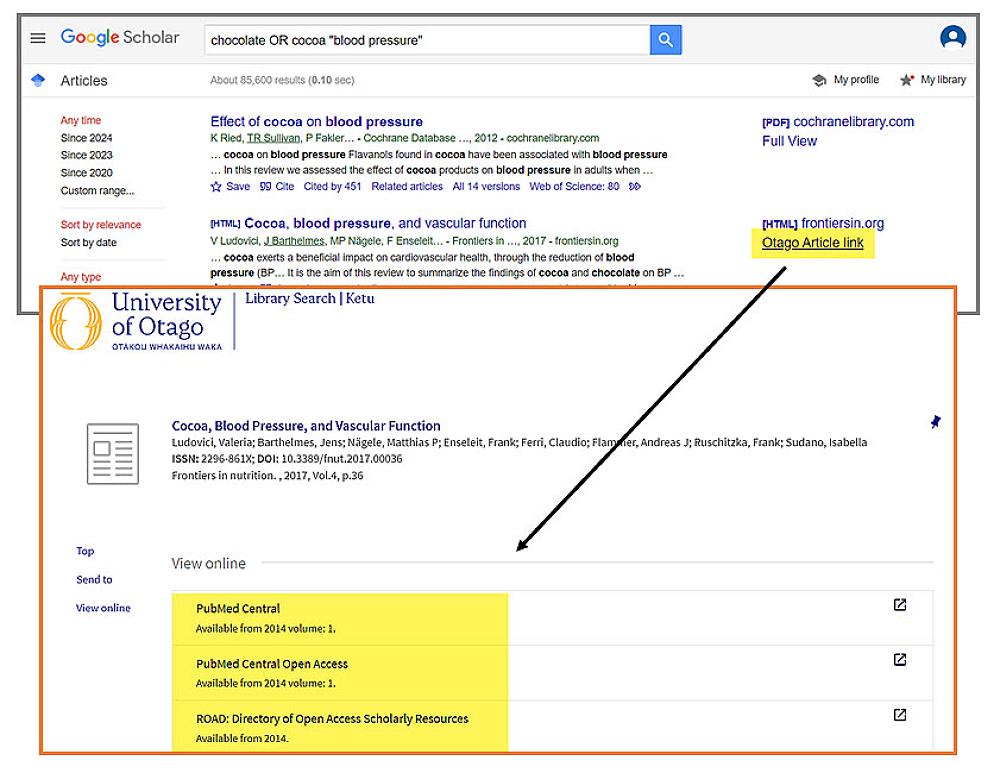
Open the Article Link in Google Scholar results to be directed to the article record in Library Search / Ketu. This record for the article will provide one or more link depending how many databases have access to it (and shown in the screenshot in below)
No Article Link?
Items that don’t have this Article Link are sometimes Open Access - freely accessible to the public. If this isn't the case and you are prompted to pay for access, utilise the Interloan service and make a request for it.
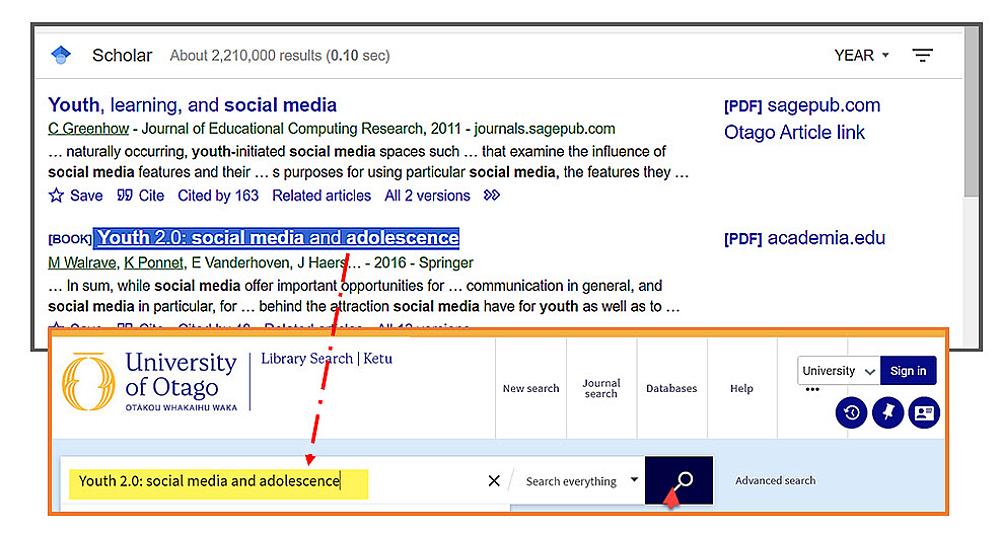
Book results in Google Scholar
There is no equivalent Library link for book results in Google Scholar. The only way to find out if a book in Google Scholar is held in the Library collection (in print / hard copy or electronic), is to search for it in the Library Search | Ketu.
If the book is not held in the Library collection, make an interloan request for it.
The following two articles will discuss how to use Google Scholar to find related research and set up alerts to related research.
Gallery