Logging on to Hero - Information for whānau | families
This article provides information for whānau to support them downloading and logging on to Hero for the first time.
Remember to pop in to school tomorrow, Thursday 21st November, 11am-4:30pm if you need help or have questions about Hero.
HOW TO LOG INTO HERO FOR THE FIRST TIME
Download the Hero by LINC-ED app from the app store/play store.
Note: use the keywords Hero LINC-ED when searching for the app.
Alternatively, open your browser and enter go.linc-ed.com
You can log in to Hero with your email and password, or log in using your Google or Microsoft accounts.
LOG IN WITH YOUR USERNAME AND PASSWORD
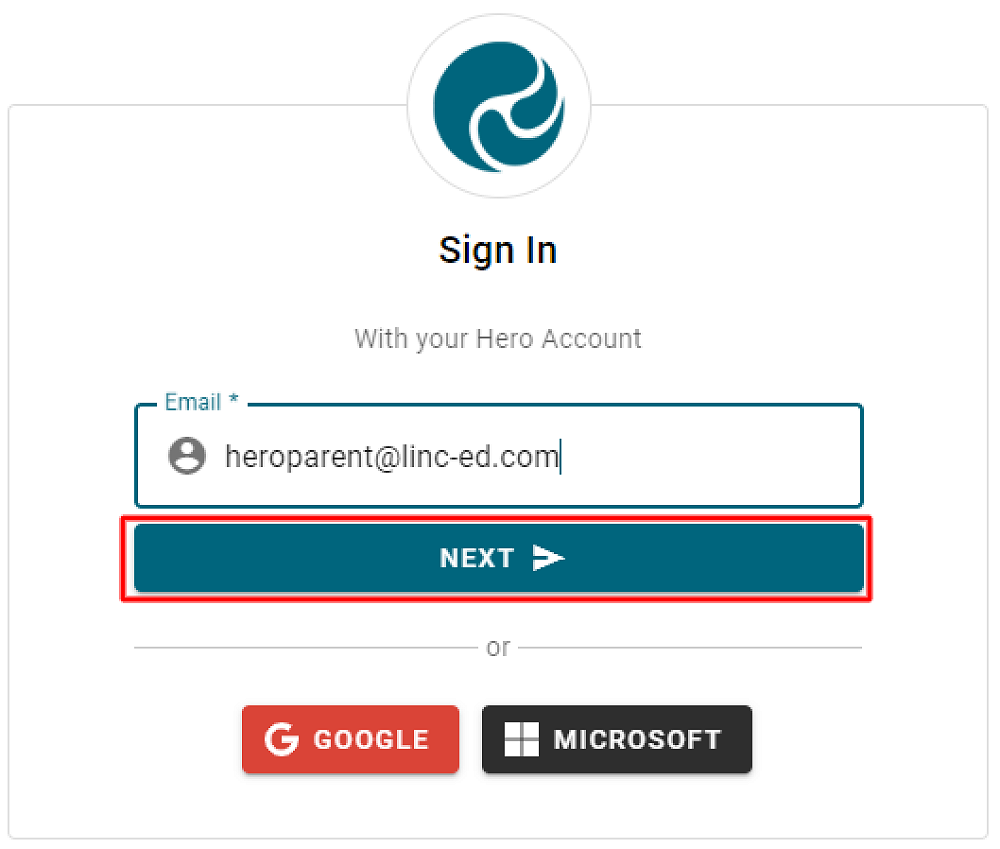
1. Enter your email address. This must be the email address you supplied to the school.
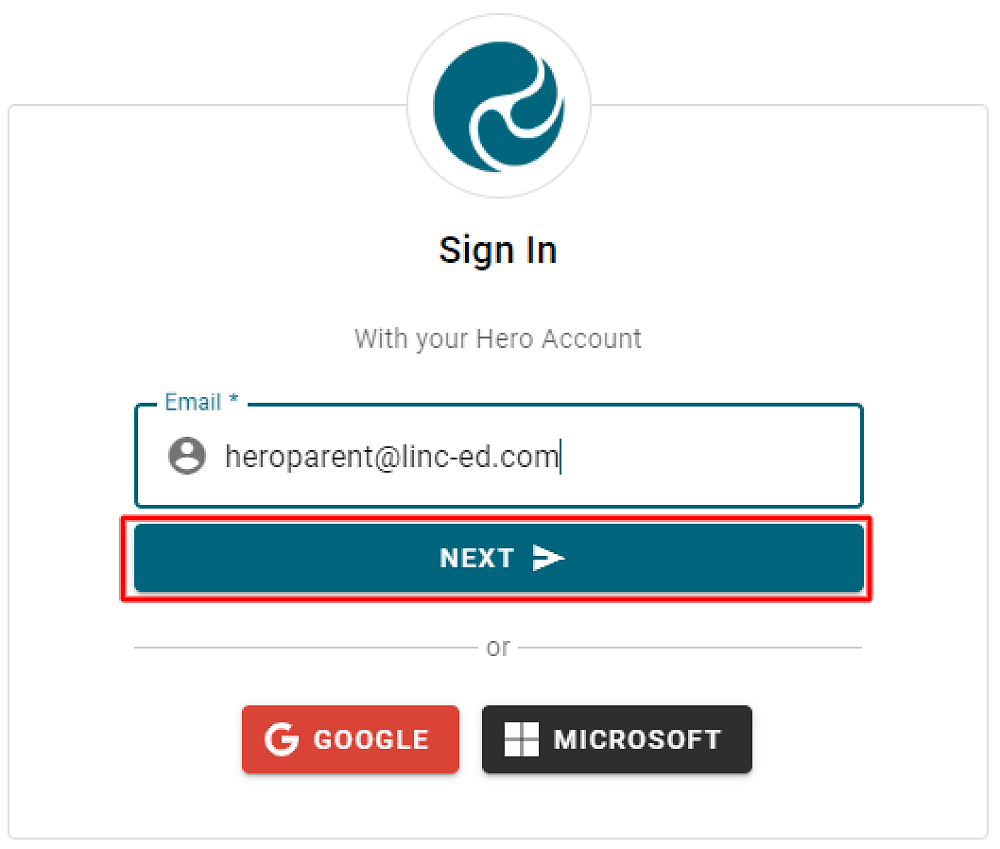
2. Click NEXT.
If your email address is not accepted, please contact your school.
3. Click NEW USER
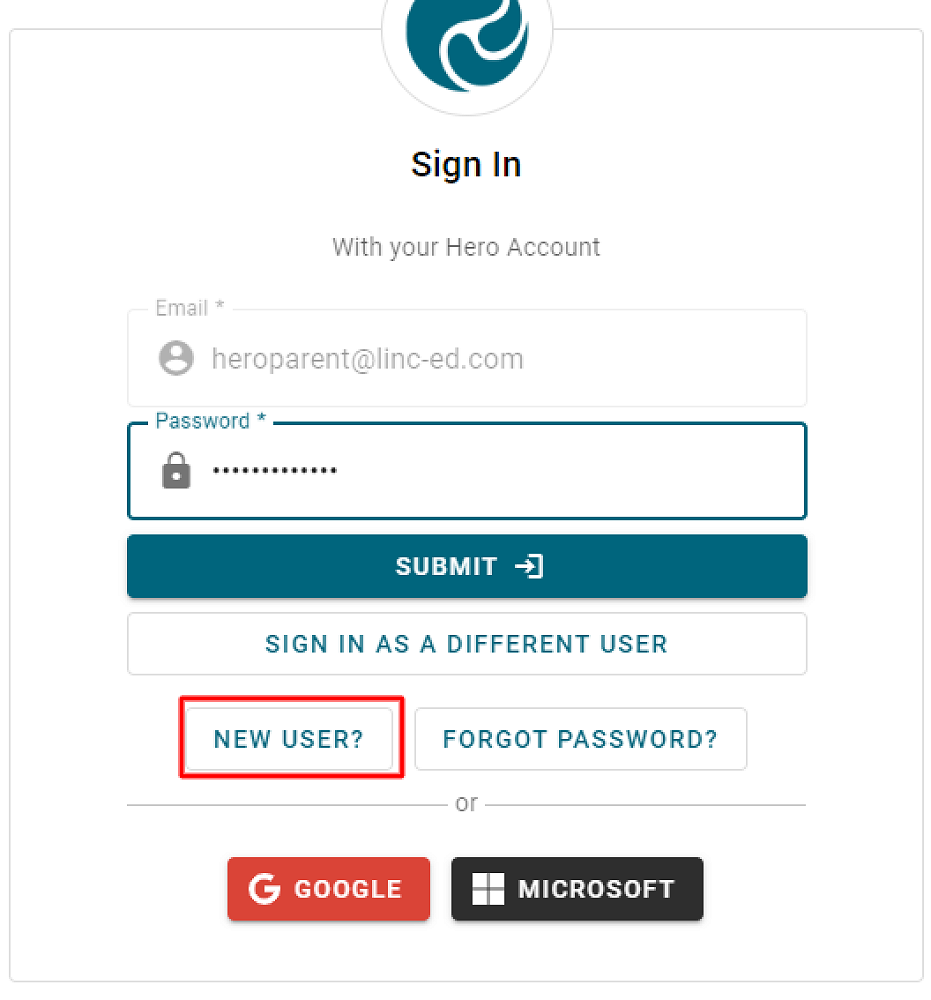
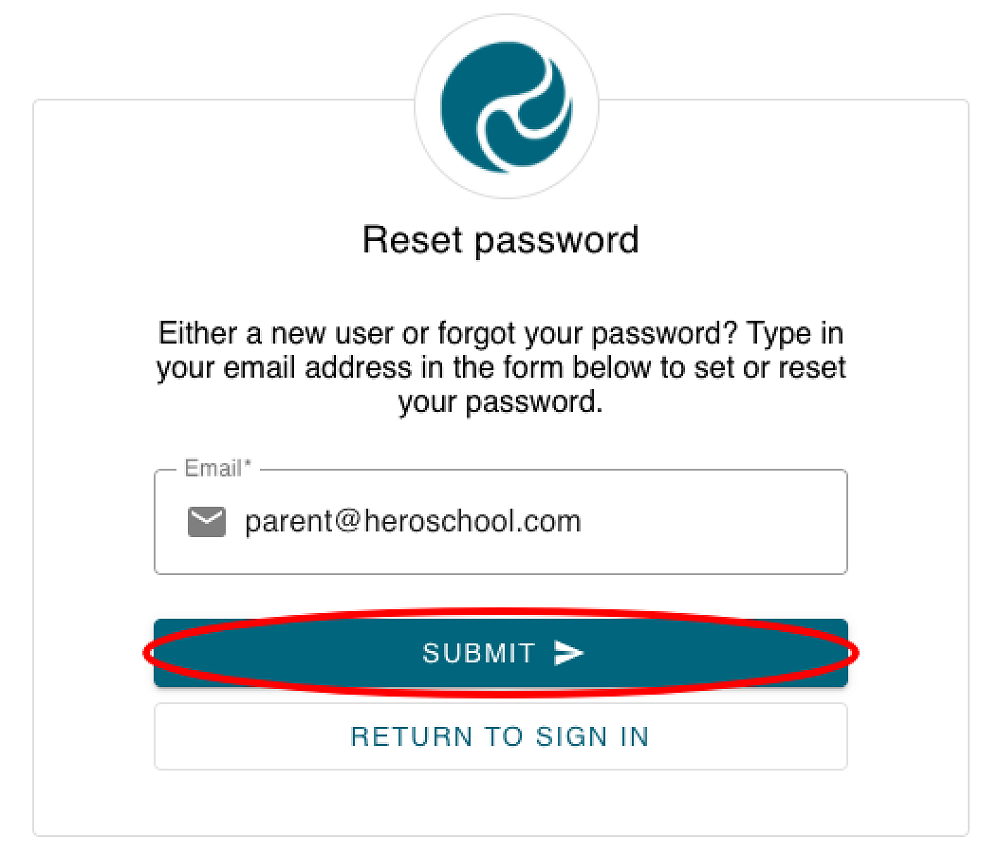
4. Enter the email address you have provided the school and click SUBMIT.
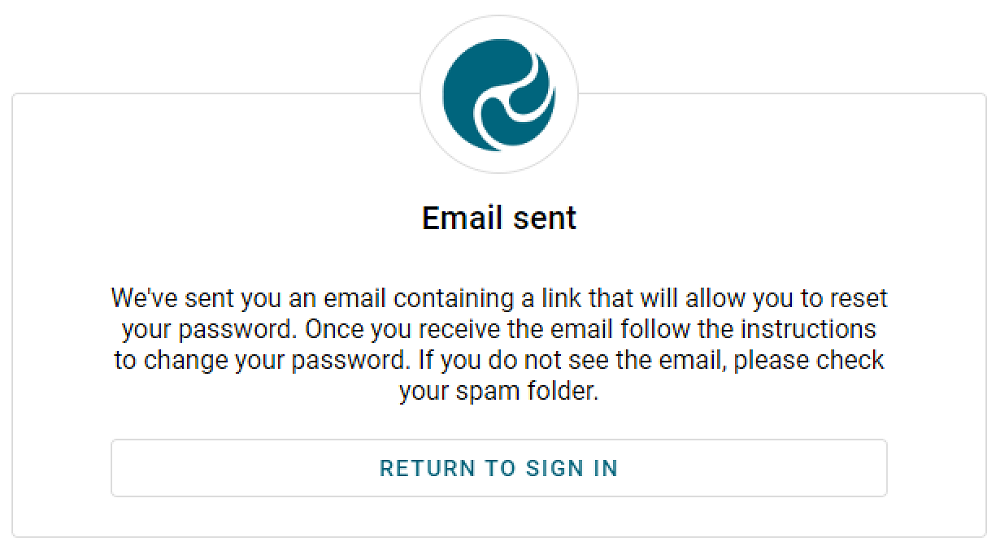
5. You will receive a message confirming a password email has been sent.
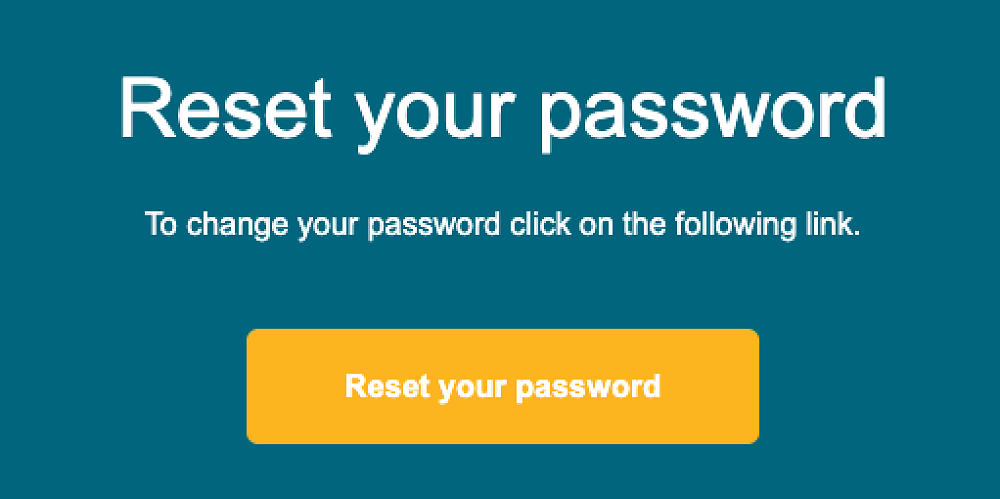
6. Open your email inbox and click on the Hero Password Reset email.
If you do not receive a Hero Password Reset email, check your spam folder.
7. Open the email and click Reset your password
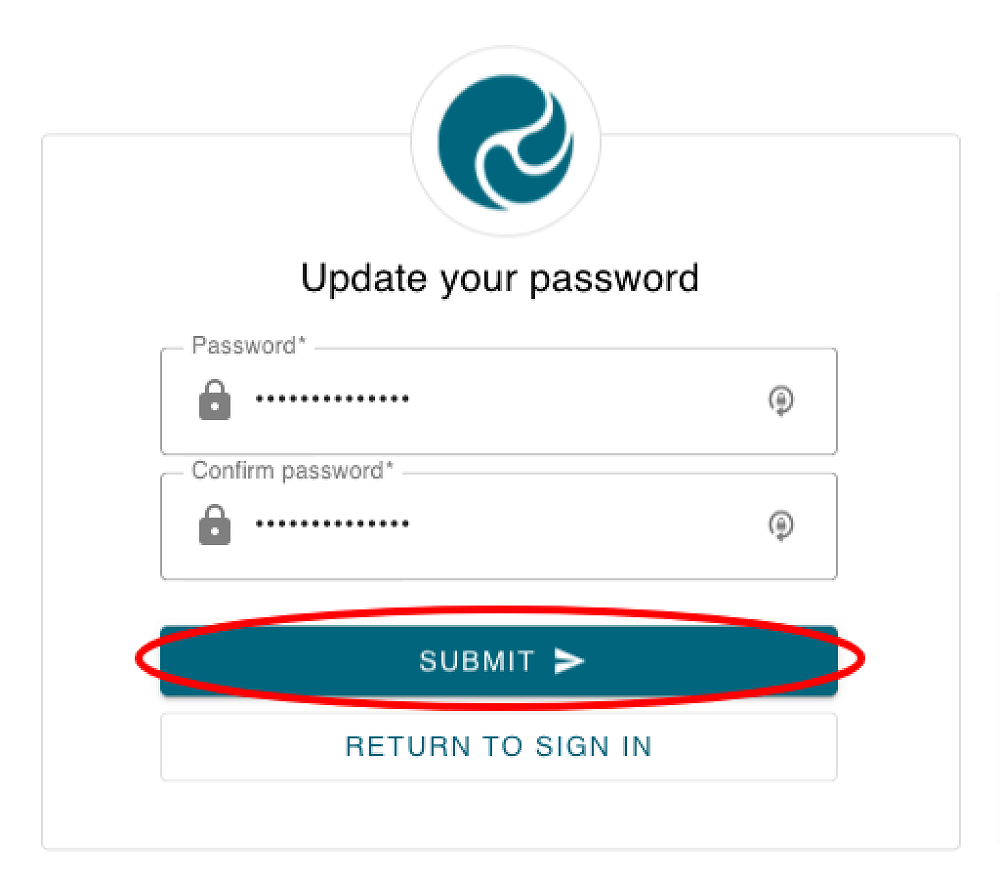
8. Enter a secure password (8 or more characters), verify this password then click SUBMIT. This will log you into Hero.
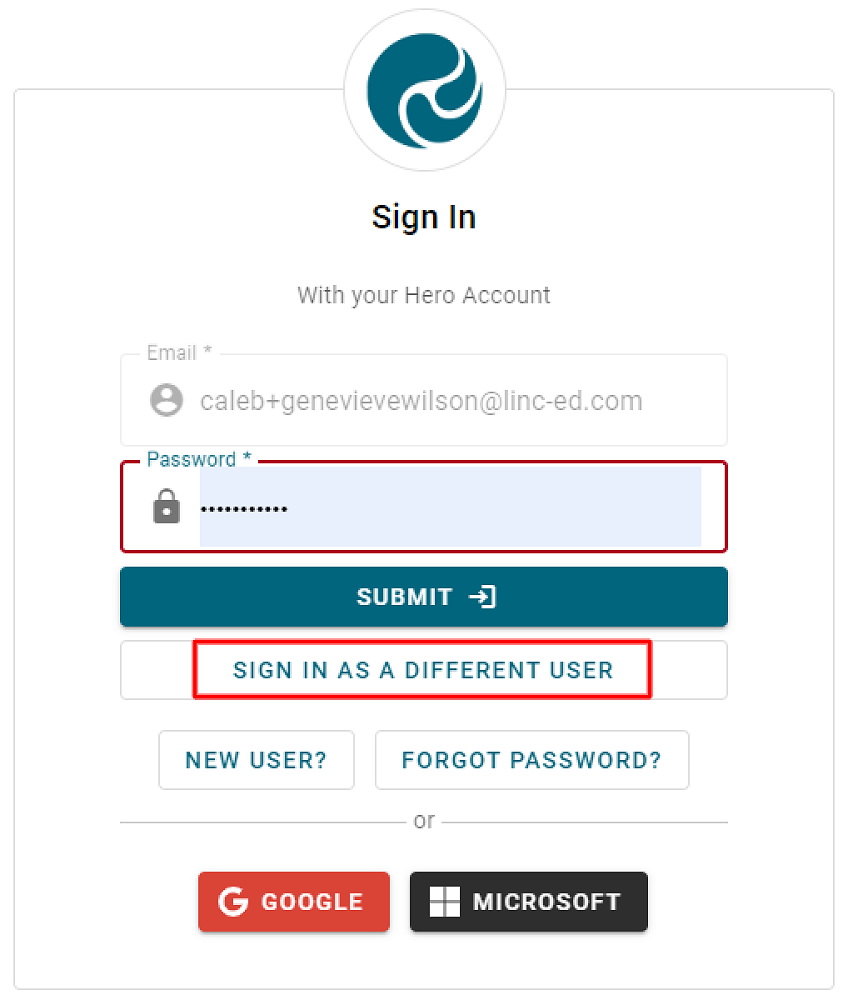
9. The next time you sign into Hero enter your email address, click NEXT, then enter your chosen password. Click SUBMIT.
10. If you have entered an incorrect email address and need to return to the previous screen, click SIGN IN AS A DIFFERENT USER.
LOG IN USING YOUR MICROSOFT ACCOUNT
1. At the login screen, click MICROSOFT
Note: Entering an email address is not required.
2. You will now be taken to the Microsoft authentication process. You will be signed straight into Hero if possible. If not, you may be required to enter your Microsoft Password and authenticate your account or confirm which Microsoft account you would like to use to sign into Hero.
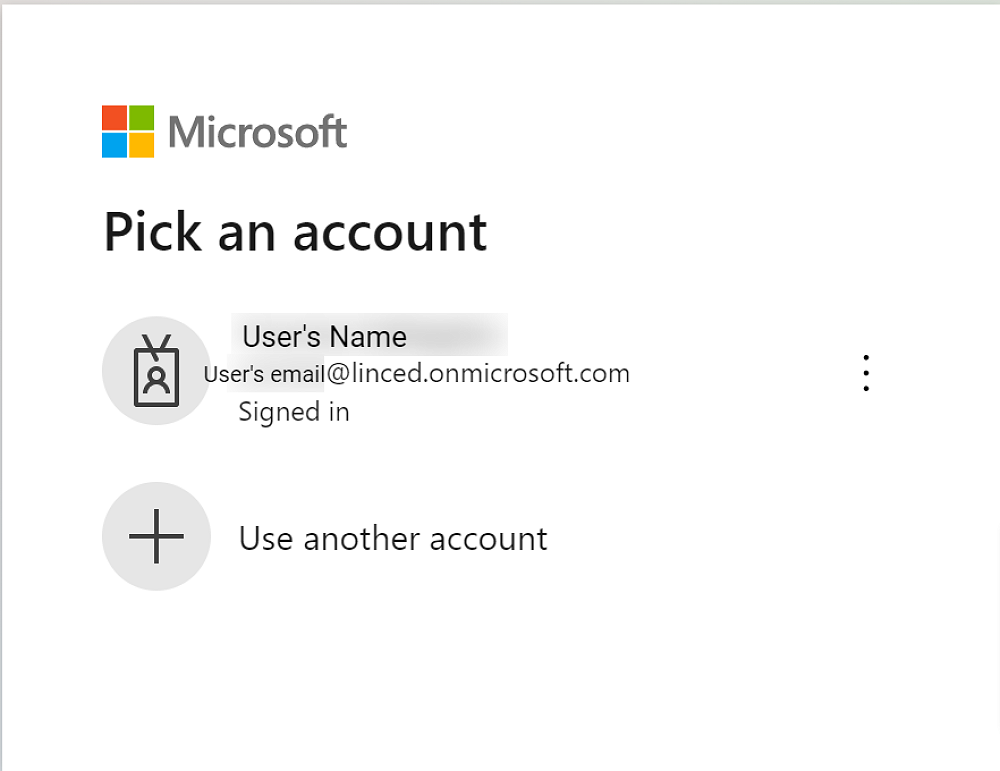
Note: Your Microsoft Account email must be the same email address that you have on your Hero account.
LOG IN USING YOUR GOOGLE ACCOUNT
1. At the login screen, click GOOGLE
Note: Entering an email address is not required.
2. You will now be taken to the Google authentication process. You will be signed straight into Hero if possible. If not, you may be required to enter your Google Password and authenticate your account or confirm which Google account you would like to use to sign into Hero.
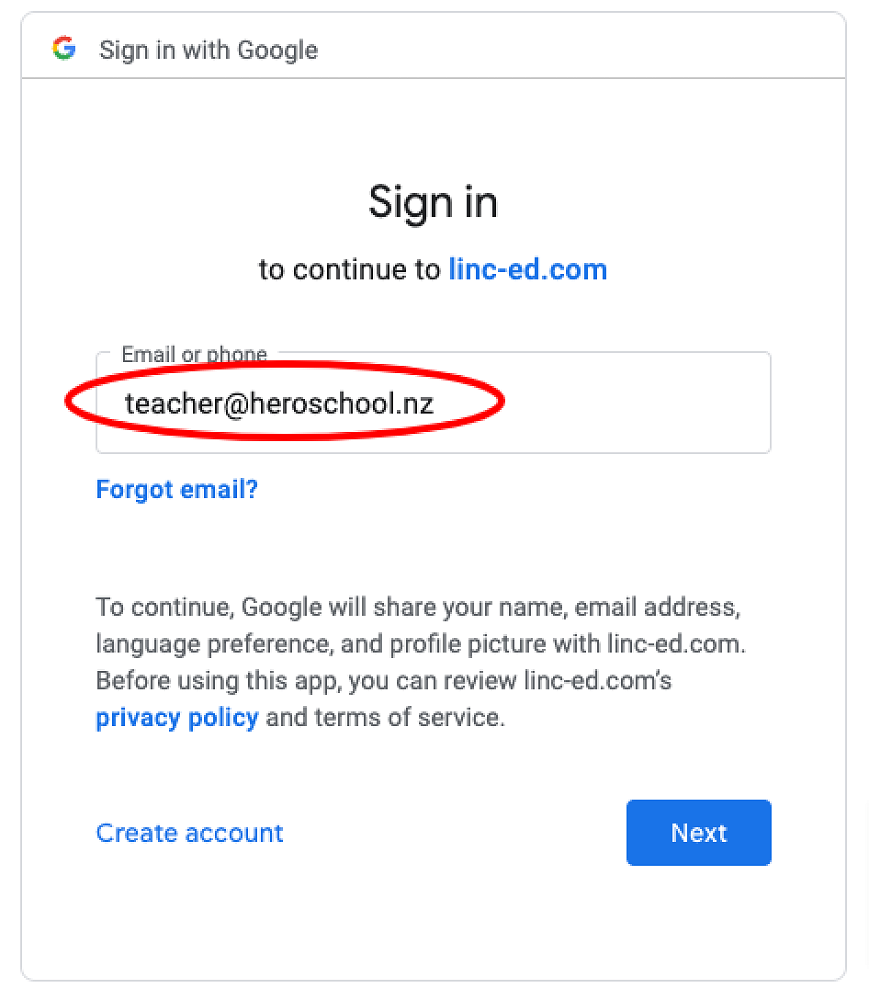
Note: Your Google Account email must be the same email address that you have on your Hero account.
ONCE YOU HAVE SIGNED IN
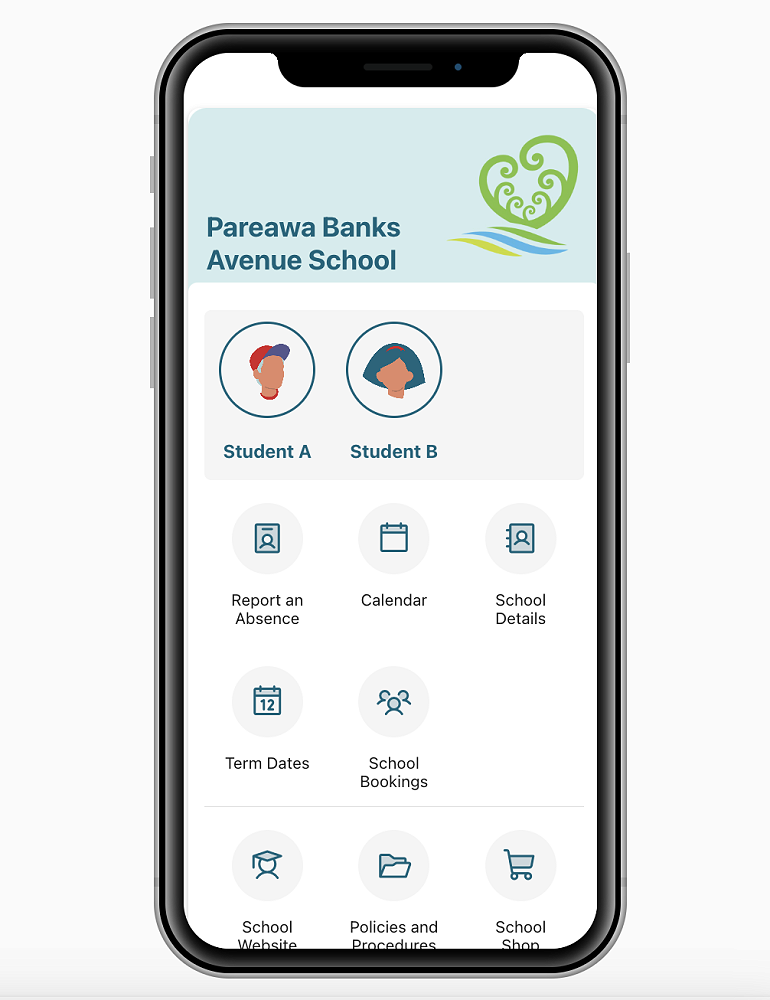
You will be taken to the home page. If the school has enabled these, you will see options for reporting an absence, viewing and paying accounts and school bookings (eg parent/teacher interviews) along with links to the school calendar and external school-related sites.
EDITING YOUR USER PROFILE
1. Click on the Account at the bottom of your screen
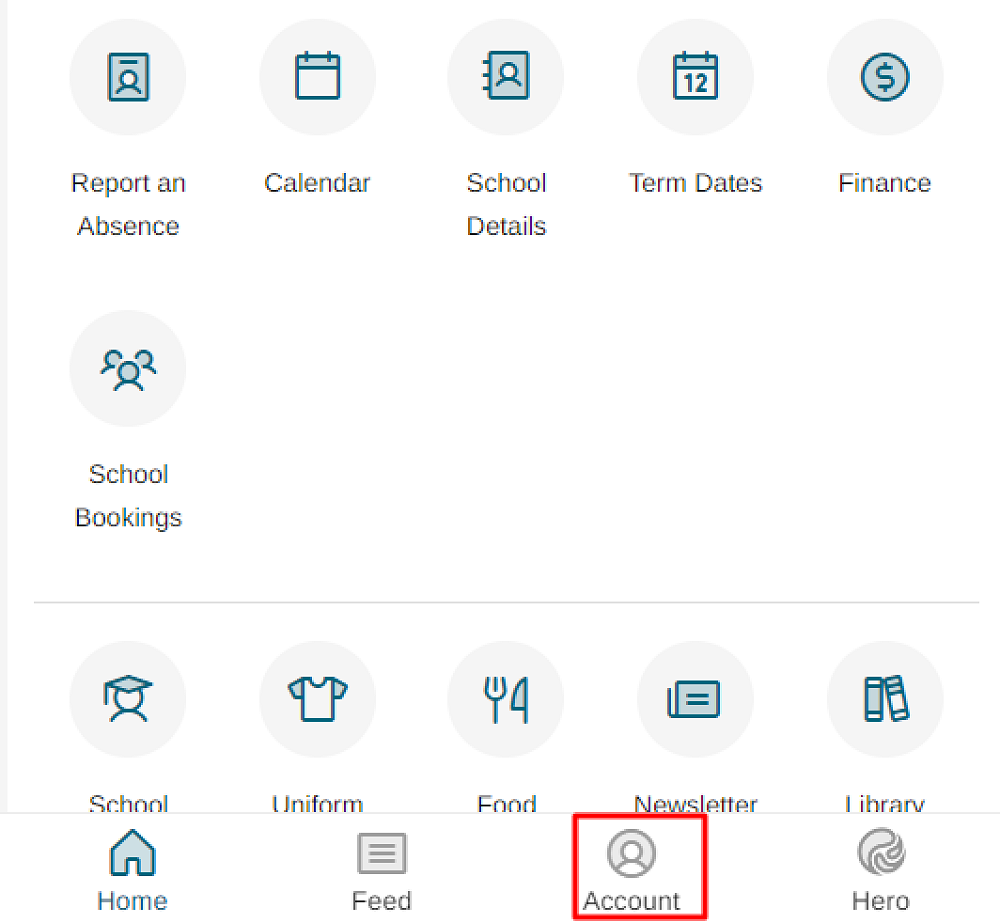
2. Here you can change your password.
3. You can also add or change a profile image. Click Select Photo or drag and drop a JPG or PNG image.
LOGGING OUT OF HERO
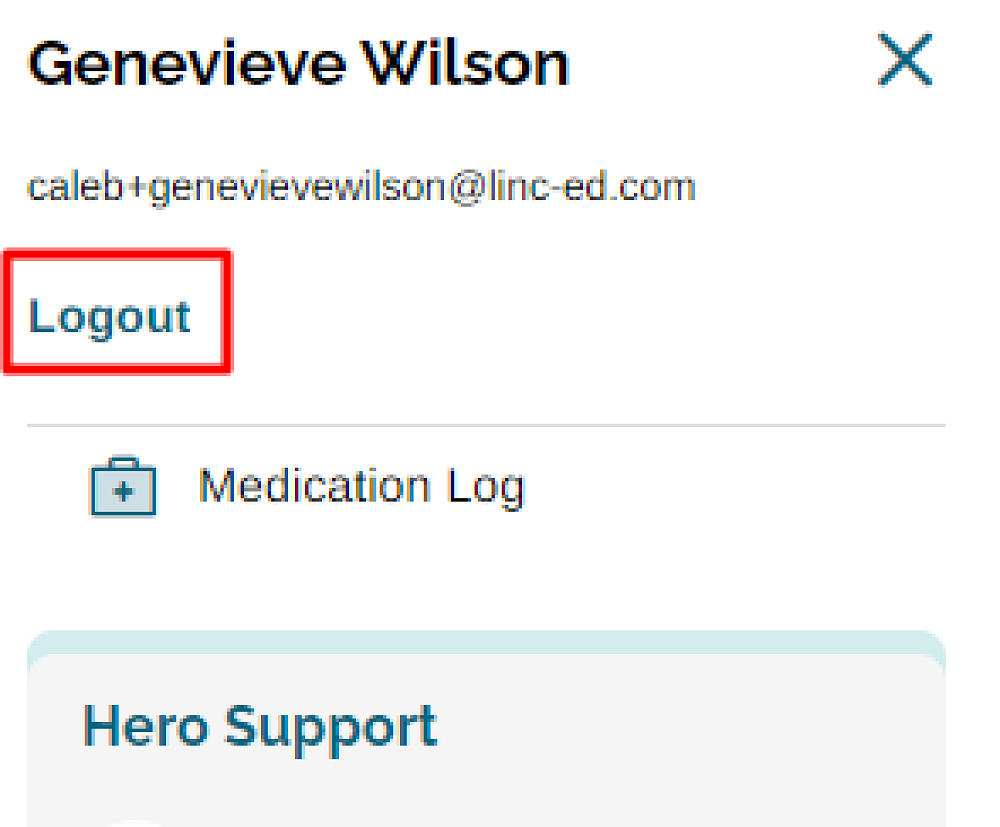
1. Click on the three lines at the top left-hand side of your screen.
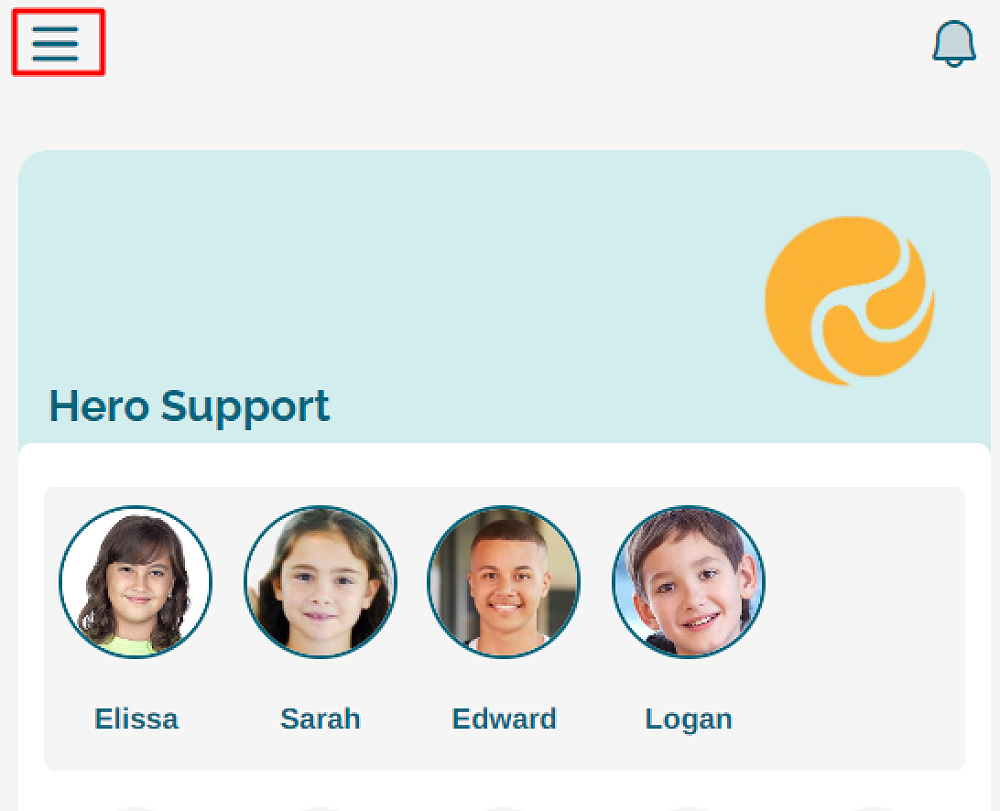
2. Click LOGOUT