

How to download your child's Seesaw journal
At the end of the year Seesaw classes are archived and new classes are set up for the upcoming year. If you would like to keep a copy of your child's Seesaw journal for 2023, follow the instructions below.
You can download a .zip archive of a Seesaw journal, including pictures, photos, videos, audio recordings, and text notes or captions.
Please use a computer and a Chrome or Firefox browser only - the .zip file will not download on a mobile or tablet device.
Students who sign into Seesaw using their email address can also download their .zip archive by following these instructions.
1. Sign into your Family or Student account at https://app.seesaw.me
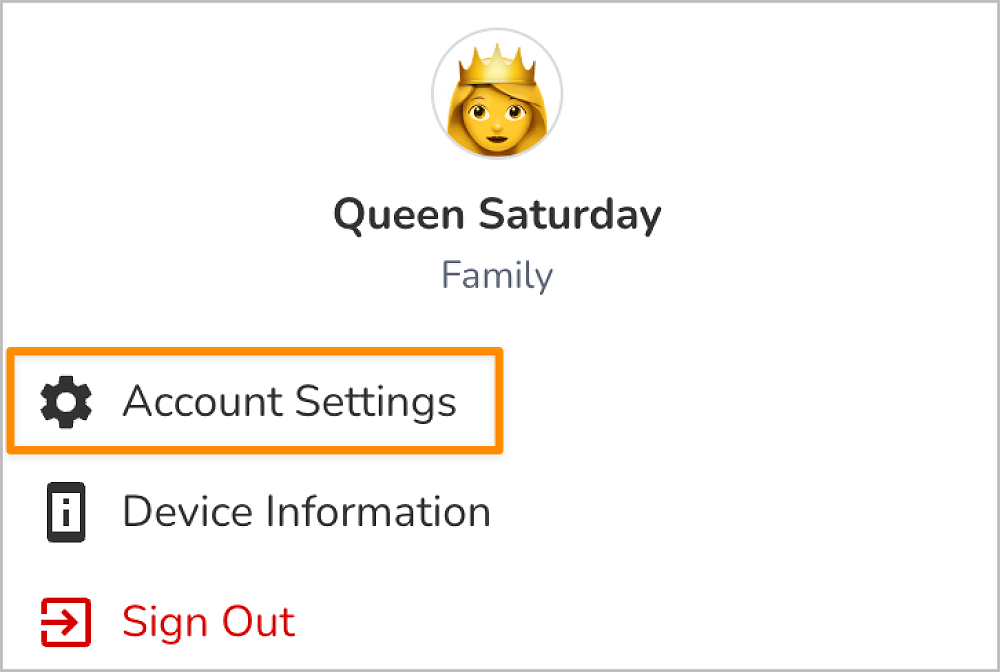
2. Tap your Profile Icon in the top left corner, and select the gear icon.

3. Tap Account Settings.
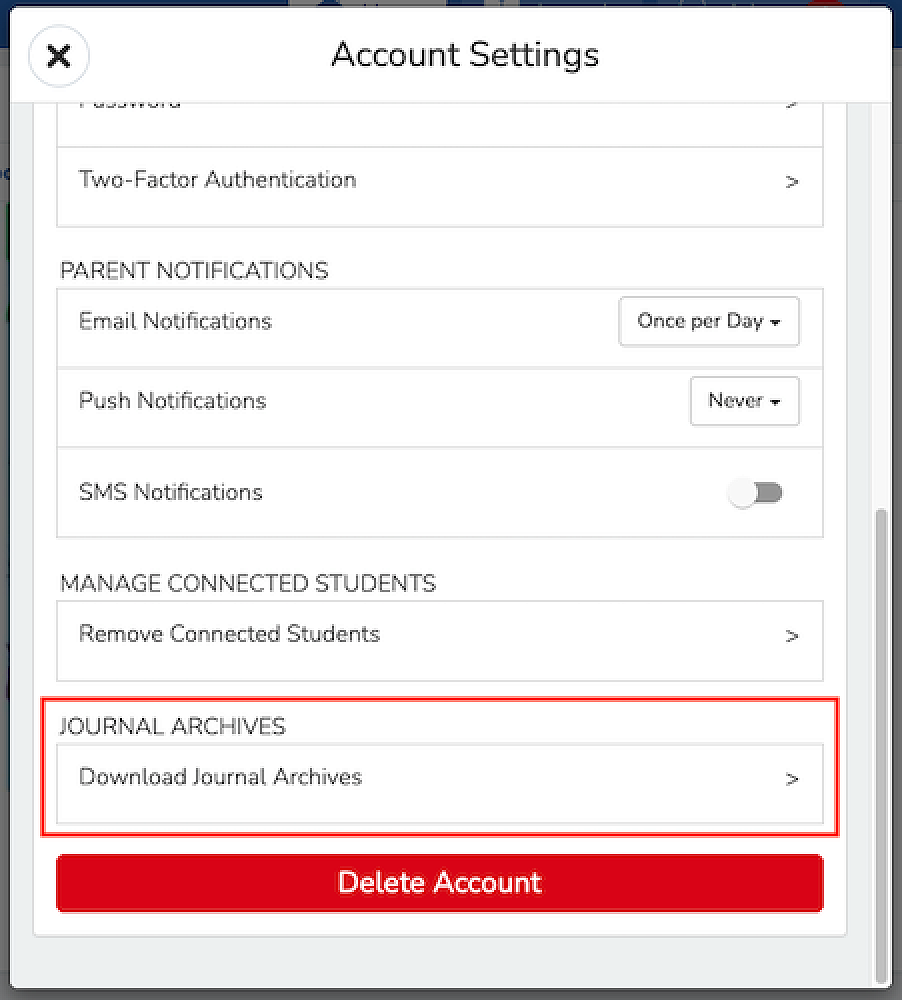
4. Scroll down and tap Download Journal Archive
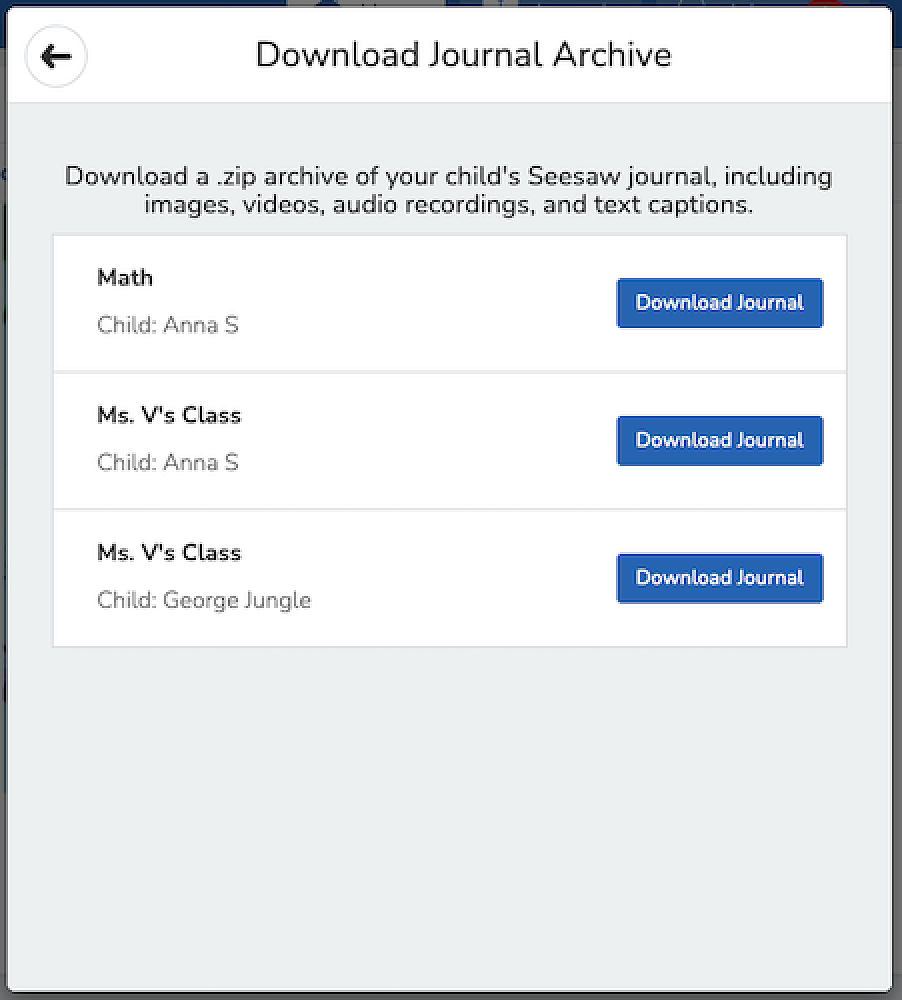
5. Tap the Download Journal button for the journal you want to download. This might take a while depending on your Internet speed and how many posts your child has in Seesaw.
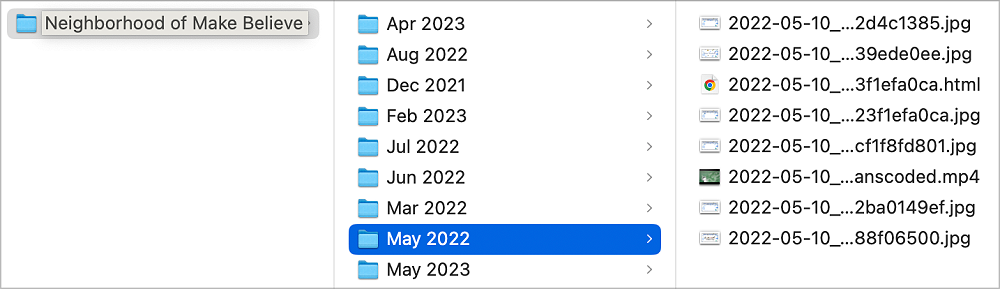
This is what you get! Files are organized by month and then ordered by the date the post was added. You'll see an .html file with a thumbnail, text notes or captions, folder names, and links (if the post used the Link Creative Tool). You'll also see the original image, video, or audio files.
If you would like to keep a record of your child's growth and learning development throughout the year, downloading their journal would be a great way to keep a record you can look back at in the years to come.
Please don't hesitate to contact me if you have any issues downloading your child's journal. megan.weir@allenvale.school.nz