
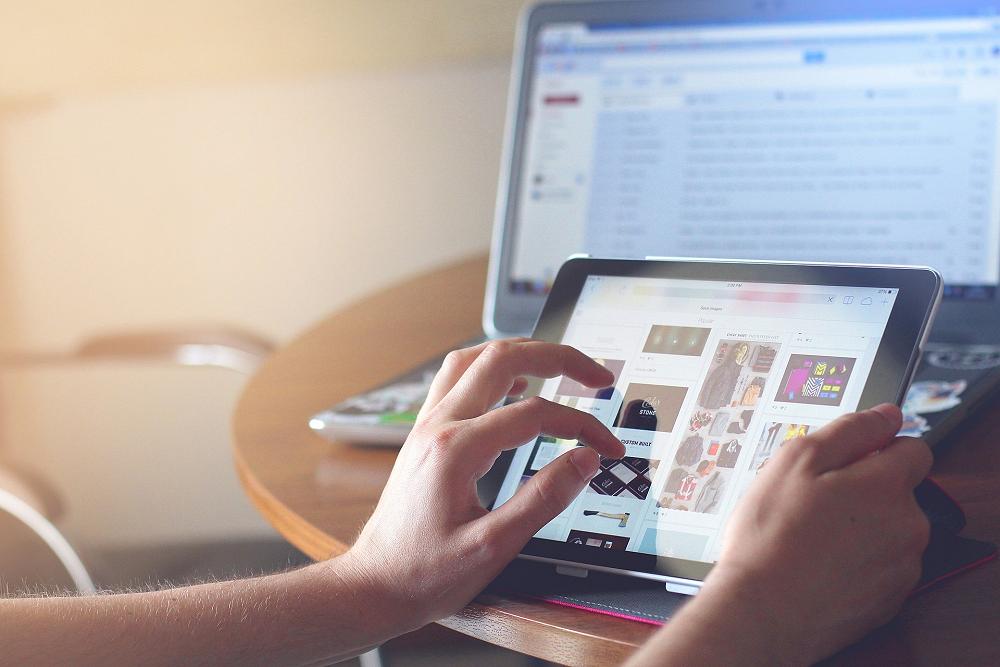
Bring your own device (BYOD)
Kia Ora!
We have been approached by some parents asking for some help / advice / guidance around our bring your own device programme. We are planning a parent / whānau session on how we use digital devices early next year (details will be supplied at the start of 2024). In the meantime, here are some key points.
Key BYOD points:
- BYOD is not compulsory at any level of the school
- We value books, pens, pencils, handwriting, and spelling. The use of digital devices will enhance these areas, not replace them
- Most of our Year 5 and 6 students do BYOD and most bring Chromebooks
- Some of our Year 4 students BYOD and most bring Chromebooks
- Only a few of our Year 3 students BYOD
- In 2020 the school invested in 97 iPads (for around $50,000) to be used across the school to ensure that those who cannot afford to BYOD, or choose not to BYOD, have access to a digital device at school
- The Government does not fund us specifically for ICT equipment, so we ask for your help and support to enable more children to have easier access
- When deciding between devices, most people choose between a Chromebook and an iPad (or similar tablet device).
Devices that are suitable (that will be compatible with our Wi-Fi network)
- Any new device will be suitable
- Any Chromebook will be suitable
- Any iPad or other similar device will be suitable
- Older / second-hand laptops will only be suitable if they have a current or recent operating system
In our experience, the most popular device is the Chromebook.
Parents seem to favour these devices because:
- They are more cost-effective ($250 - $450)
- They are reasonably hardy
- Generally last for 3-4 years (if looked after)
- Are suitable to use at Intermediate as well
- Cannot run game apps or social media apps (note that they can still access these through browsers)
Black Friday specials - 24 November
Generally, Black Friday specials are the best specials for digital devices. We know that parents have bought devices from these three retailers in the past with good service, and are happy with their purchase.
I have personally purchased the Lenovo brand and have been very happy with it.
Advice on how to set up Chromebooks
To avoid issues when students leave Te Kura o Huriawa Thorrington
Please click the link below to access advice on how to set up Chromebooks to avoid being locked out of them when your child leaves Te Kura o Huriawa Thorrington. It also contains useful information to add layers of security to your child's device. This advice was recently given out by Christchurch South Intermediate School and is useful in setting up Chromebooks correctly.
How to Set Up Your Child’s BYOD Chromebook
Complete the following steps:
Become the ‘Owner’ of your child’s Chromebook, so you can determine which accounts can sign into the device
Restrict access to certain Google accounts only
Turn off ‘Guest Mode’
This is important to do, so you’re certain that when your child is using their Chromebook on any network, they are signed in with their school Google account and therefore protected by the School software. If you do not do this, then they can sign in with an unmanaged account, or as a ‘guest’, and will not be protected by School software.
Nga mihi nui,
Chris Panther
Tumuaki Tuarua - Deputy Principal