
Guide to understanding student learning information
Your handy guide to understanding learning information (released on 4 December - 3.30 pm)
Kia Ora Koutou,
I am sure many of you are keen to find out how your child is progressing with their learning and it is the time of the year when we release this information to parents. The access to this information is via our school management system called "HERO". This can either be via the website listed at the bottom or via the "HERO by LINC-ED" app.
This information is being released as a pre-cursor to the General Comments that will happen next week. These comments will give more information as to what type of learner your child is, how they work in the classroom, how they show the 4C's (caring, curious, confident, citizen) and what they need more help with.
It is important to note that this has been far from a normal year. Learning and progress will have been disrupted for all New Zealand students and it has affected students all around the world. While we have all done our best with learning from home, it cannot compare to the normal learning environment of the classroom. We must take this into account when reviewing the end of year data and sharing of learning.
As HERO is a digital platform (rather than a paper report) there are a number of ways that you can interact with the information provided (and buttons you can push) to get more detail. The information below gives you the detail of how you can interact with the information.
What the dials show:
- The dials give an overall percentage of progress through a level. If you are looking for the details, these are where they are.
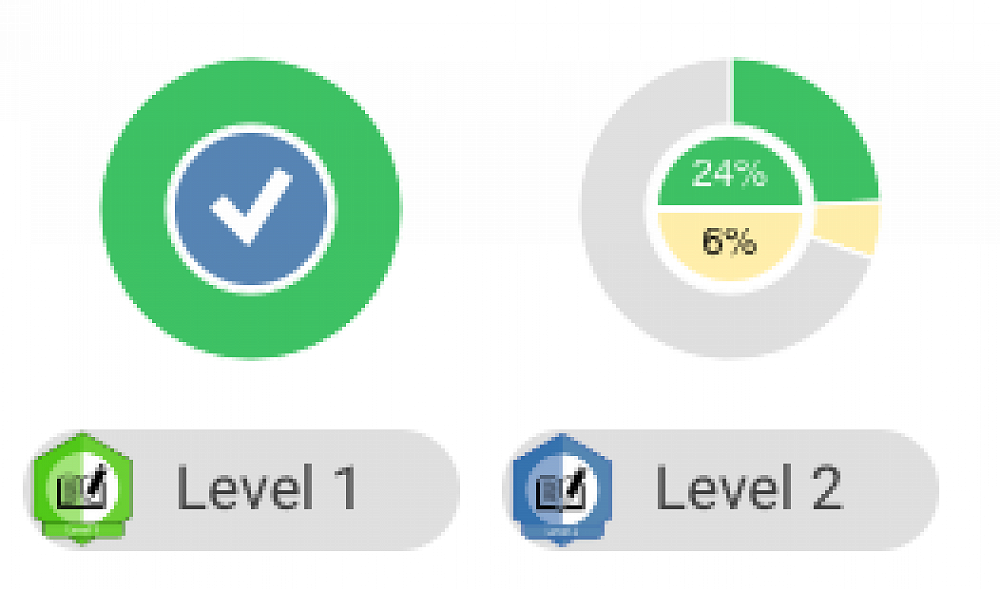
- There are three levels that we want all students to move through before they leave our school at Year 6
- Generally, speaking levels are as follows
- Level 1 - Year 1 and 2 (Timatanga)
- Level 2 - Year 3 and 4 (Whanaketanga)
- Level 3 - Year 5 and 6 (Tuakana)
- Goals need to be achieved in a regular fashion in order to create progress on these dials
- Green goals indicate that they have been achieved
- Buff / yellow goals indicate those that are being worked on now
- Black goals indicate goals that have not been achieved yet and will be goals coming up in the future
- Where Level 1, 2 and 3 are listed are actually buttons. You can press these to find out what the goals are at this level.

- Levels are further broken down into 3 parts to help show progress through these big (2 year long) levels. See also progress charts below.
- "B" - indicates they are beginning this level
- "P" - indicates they are proficient at this level
- "A" - indicates they are advanced at this level
-
On the dials
- 0 - 33% of goals achieved will be considered a "B"
- 34 - 66% of goals achieved will be considered a "P"
- 67 - 100% of goals achieved will be considered an "A"
Next steps:
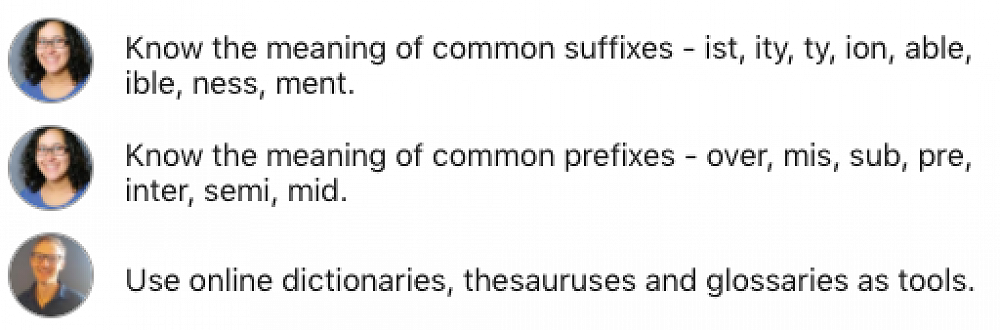
Below the dials and the Levels, you will see 2-3 next steps that have been set. These are the foci for your child in the next period of time. You will see the photo of the teacher who set the goal.
Recently achieved goals:
Finally, you will see a button "see recently achieved". By clicking here you will see a list of the previous 5 goals completed, which teacher has marked them off.
Progress Charts:
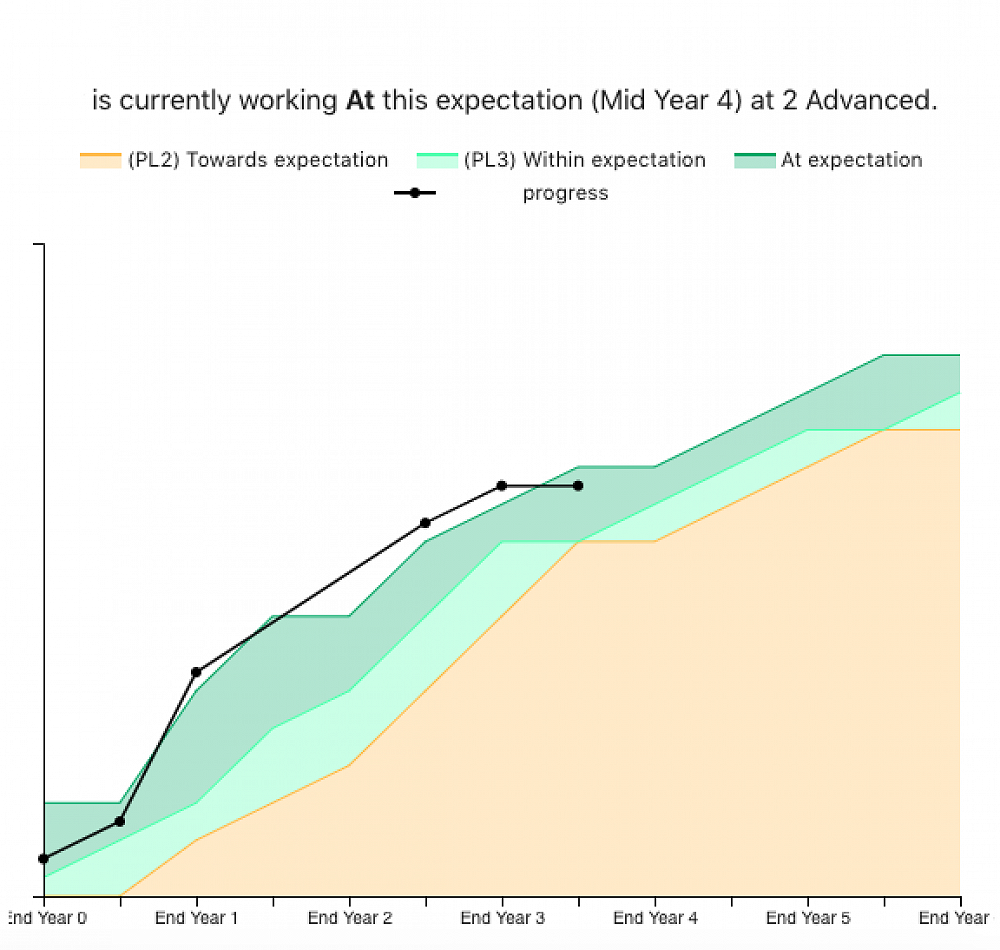
A new feature that our HERO software offers is the progress chart. This shows a child's progress over time (two data points a year) with the backdrop of the school expectations. If you are looking for "how your child is doing" or "how they are going compared to last year" this is where to look.
- Either green is considered "at" our school expectation. Having two greens allows us to track those students who are "just at" the expectation (lighter green), and those who would be a stronger "at" (darker green) separately.
- The orange section indicates that the student is working "towards" our school expectation. They are not "at" the expectation yet.
- The white section indicates the student is "above and beyond" school expectation.
- As teachers mark off goals, the software updates this graph automatically. Although, it will not move a data point up until the student has achieved another third of the goals within that level.
- How do you know what they need to do to move up? These goals will be listed under "Next Steps" which is explained above.
How to access student learning and progress information
- Go to https://app.linc-ed.com
- Log in with your regular details
- If you don't know your password, click the FORGOT PASSWORD link
- Click on your child on the left-hand menu
- Click "2020 Report"
Alternatively, you can download the "HERO by LINC-ED" app and follow the similar login and pathways listed above.
Ngā mihi nui
Chris Panther
Deputy Principal - Tumuaki Tuarua